Remove a user's passkey
A passkey signs a user in with their fingerprint, their face or the PIN of their device. When a user loses a device that keeps a passkey, remove that passkey. The device then cannot sign in to the user’s account.
Who can do this: System Administrator and Clinical Research Administrator. A Clinical Research Administrator removes the passkeys of the users of their own organization only.
Users can also remove their own passkeys. See Use a passkey.
Remove the passkey
Section titled “Remove the passkey”-
In the admin, open Users. Open the user.
-
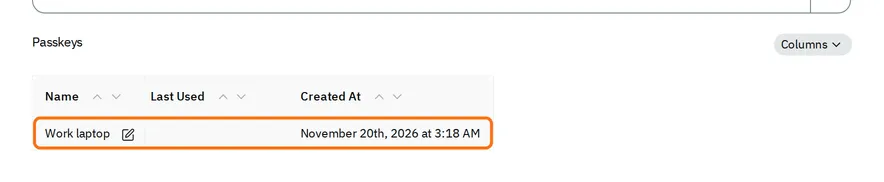
In Passkeys, find the passkey. The table shows the name of each passkey, the date it was last used and the date it was added.
-
Next to the name of the passkey, select the edit button.
-
At the top right of the passkey, select the button with three dots.
-
Select Delete.
-
Select Confirm.
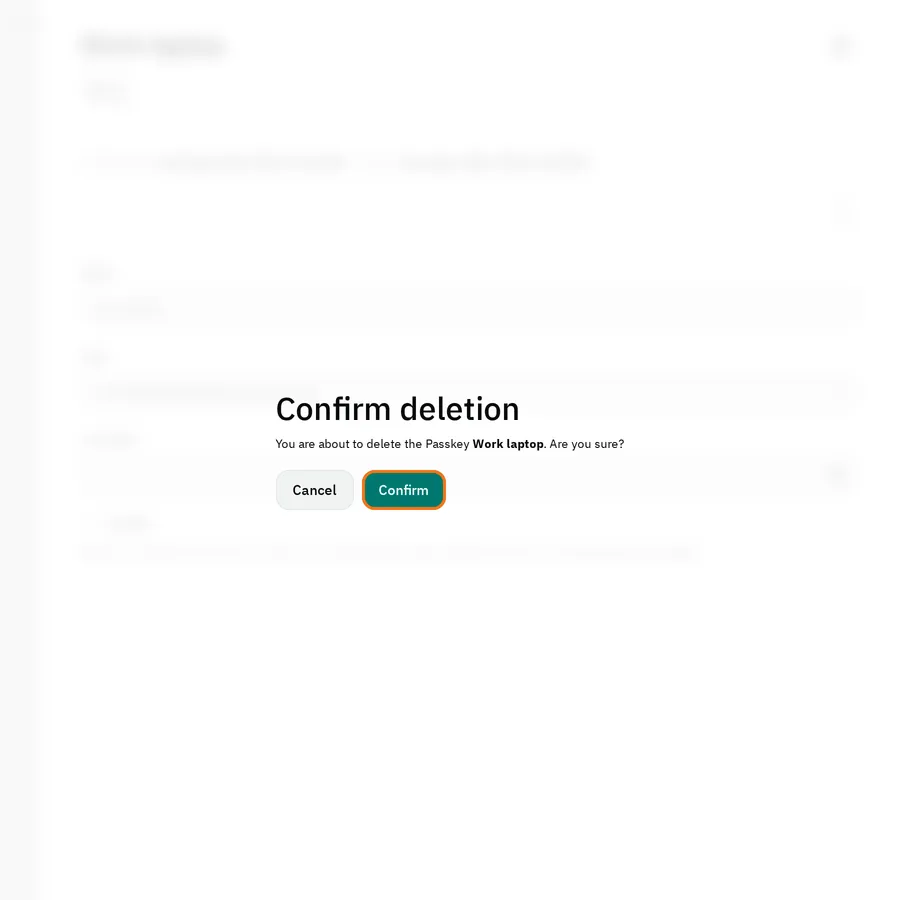
The admin removes the passkey from the table. The passkey cannot sign the user in again. The user signs in with their password, and can add a new passkey.
You cannot add a passkey for a user: each user adds their own passkeys in the eCRF.
If the user also forgot their password
Section titled “If the user also forgot their password”Give the user an access link to choose a new password. See Give an access link.